
1) After you have downloaded OptiScan from your download link, please make sure that the tools folder is kept with the OptiScan executable.

2) Before you can launch OptiScan make sure the Unblock box is checked in OptiScan.exe properties. (Right click on the OptiScan.exe file and go to Properties to access.)
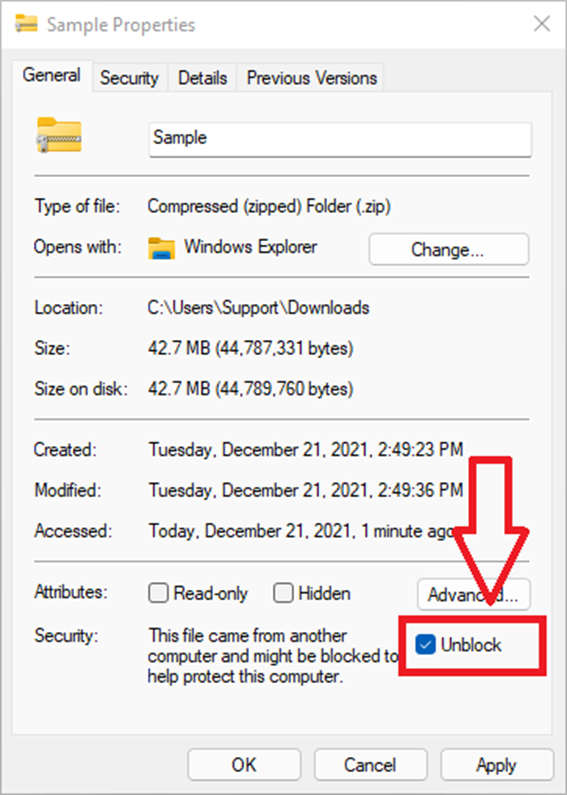
3) After you unblock, double click on the OptiScan.exe application to launch it.
4) After you first launch OptiScan the first thing you need to do is add your IP range.
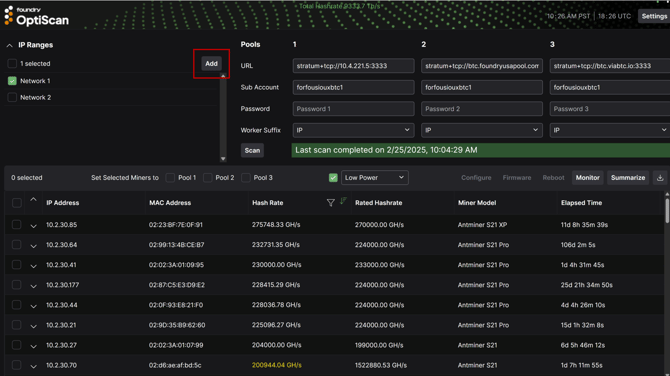
5) Add a name, and the range numbers, then click save.
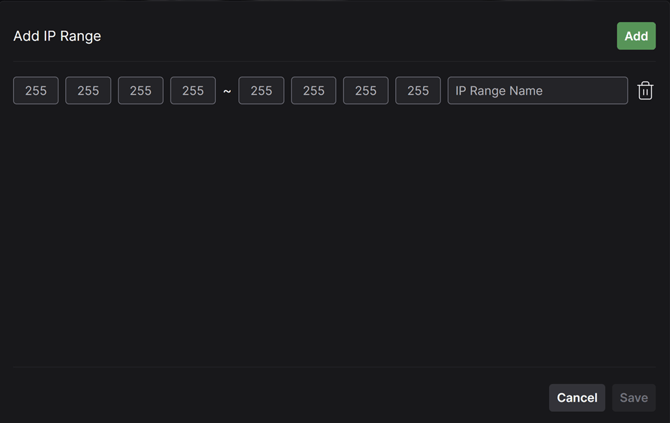
6) Select the check box and click on Scan to scan the network for miners.
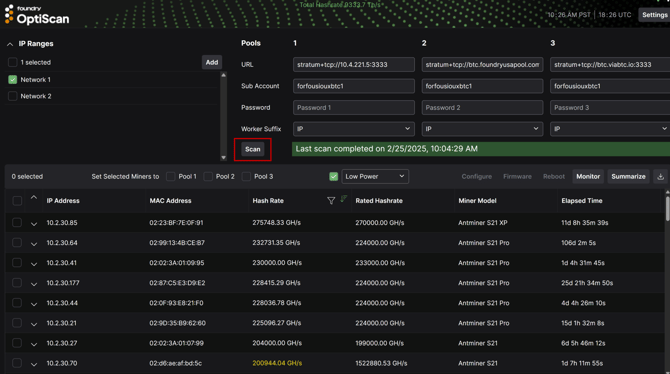
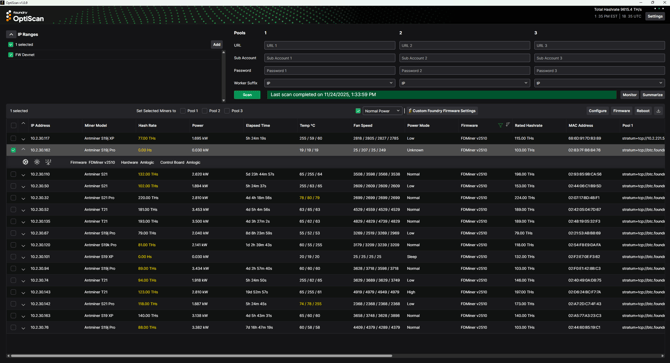
7) Select miners to uninstall.
Locate the miners running Foundry Firmware that you want to uninstall. Select the checkboxes next to the miners you wish to return to stock firmware.
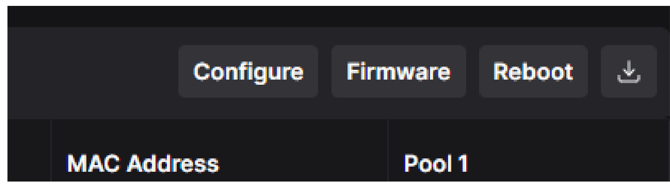
8) Access Firmware Menu.
Click the Firmware button in the toolbar at the top of the OptiScan interface.
NOTE: We strongly recommend limiting uninstalls to batches of no more than 50 machines at a time in order to prevent electrical damage from large uninstalls.
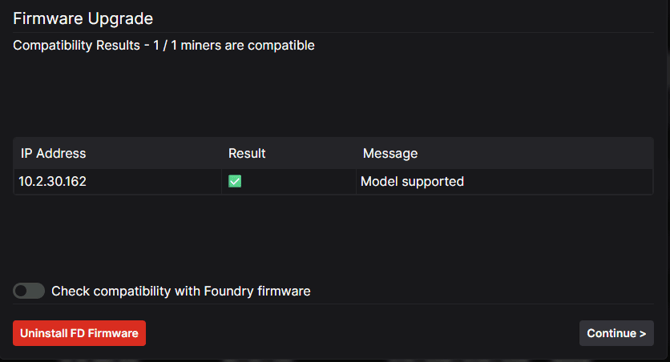
9) Initiate Uninstall.
Click the red Uninstall FD Firmware button to begin the uninstall process.
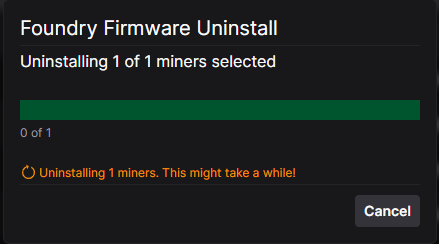
10) Monitor Progress.
The uninstall process will begin. A progress bar will show the status of the uninstall operation. Do not close OptiScan or interrupt this process. This may take several minutes to complete.
11) Review Results
Once the uninstall is complete, the results screen will display the outcome for each miner. Verify that the uninstall was successful by checking for green checkmarks and success messages.
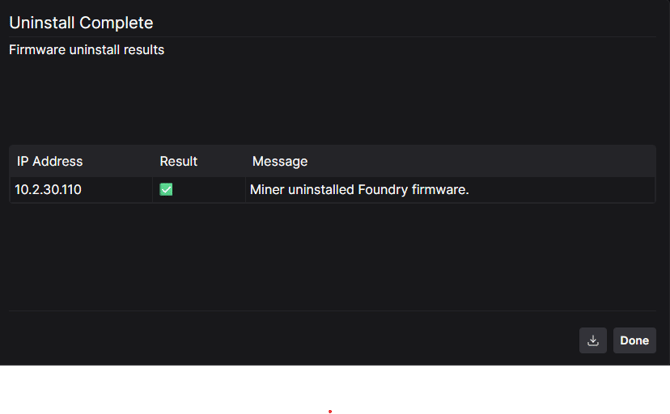
12) Download Results (Optional)
You can optionally download a CSV file containing the uninstall results by clicking the download icon. This is useful for record-keeping or troubleshooting.
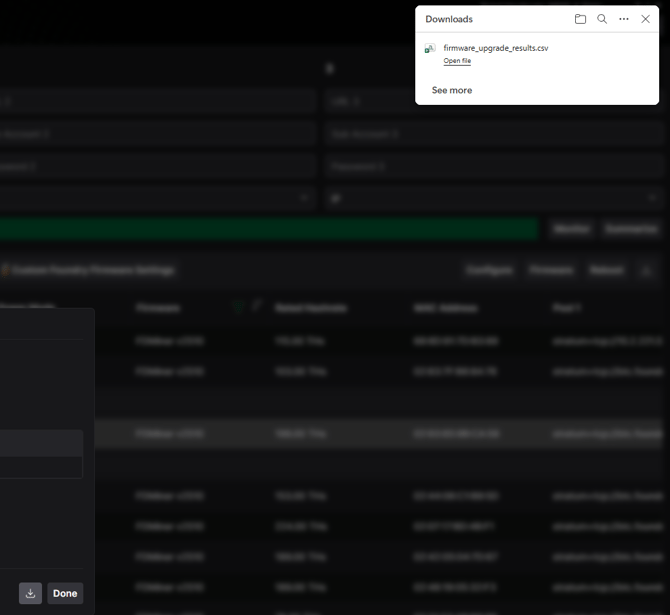
13) Verify Stock Firmware
Access your miner's web interface directly by navigating to its IP address in a web browser. Confirm that the miner has returned to the stock Antminer interface and is operating normally.
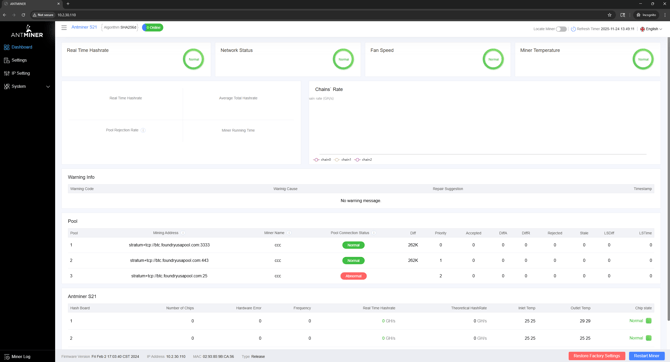
Your miner has been successfully returned to stock firmware. If you encounter any issues during the uninstall process, please contact Foundry support for assistance.